Step 1: Start the Signup Process
- Navigate to Settings
- WhatsApp
- Set Up a New WhatsApp Number.
Step 2: Start the Signup Process
- WhatsApp Set Up a New WhatsApp Number.
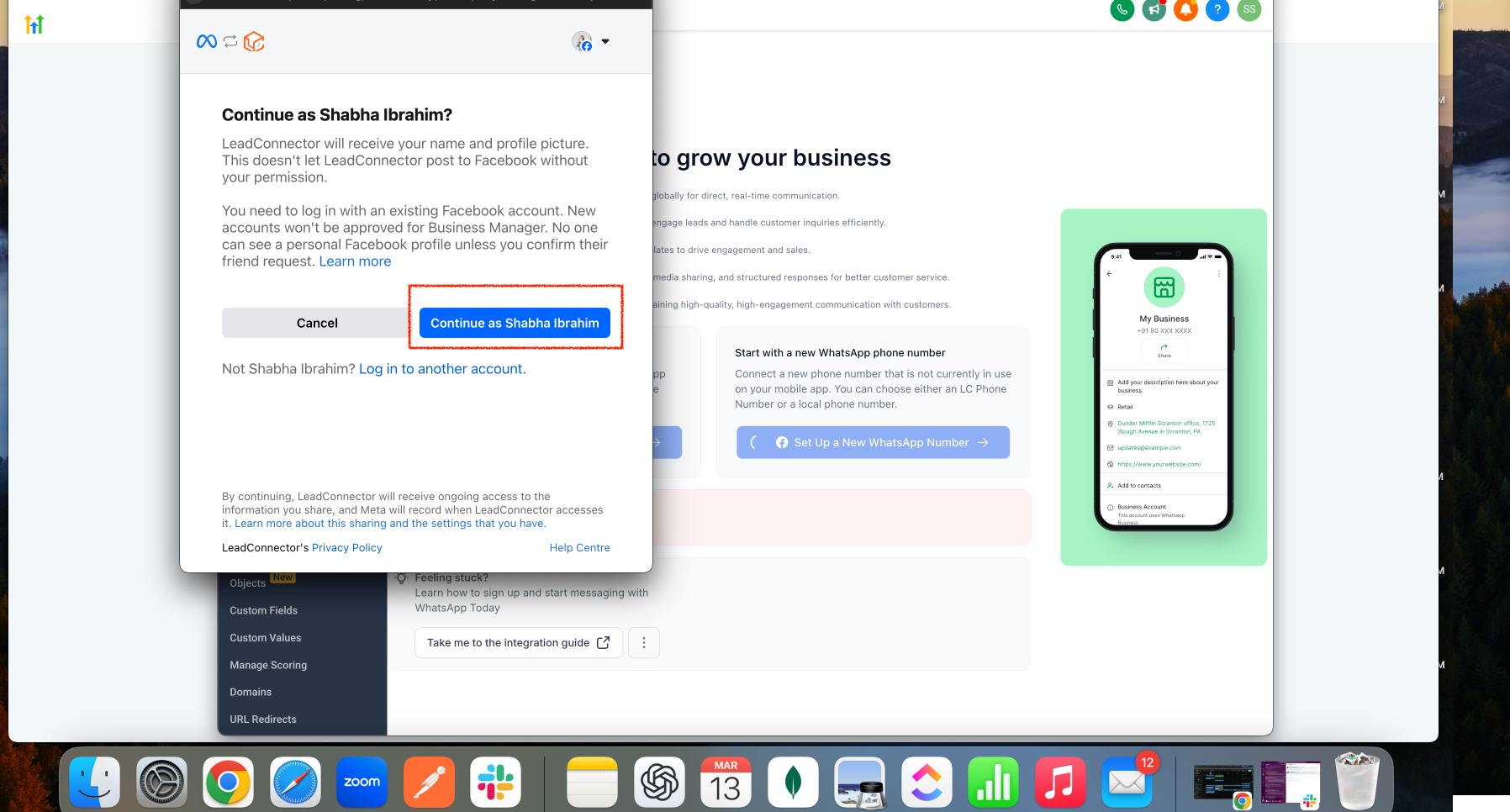
Step 3: Continue with Facebook
- Click “Continue with your Facebook account” to proceed
Step 4: Begin the Setup
- Tap “Get Started” to initiate the integration process.
Step 5: Enter Business Details
- Fill in the required business information and click “Next”.
Step 6: Create a WhatsApp Business Account
- Select “Create WhatsApp Business Account”.
Step 7: Confirm Your Selection
Step 8: Save & Complete Setup
- Click “Save” to apply your settings.
Step 9: Complete the Setup
- Tap “Finish”—your WhatsApp Business Account is now successfully integrated!
Step 10: Add & Verify Your Phone Number
- Click “Add Phone Number” and proceed with verification.
Step 11: Choose a Verification Method
- Text Message (SMS): Select this option to receive an OTP via SMS. Navigate to the Conversations tab to retrieve the code.
- Phone Call: If selected, you will receive a verification call on your forwarded number.
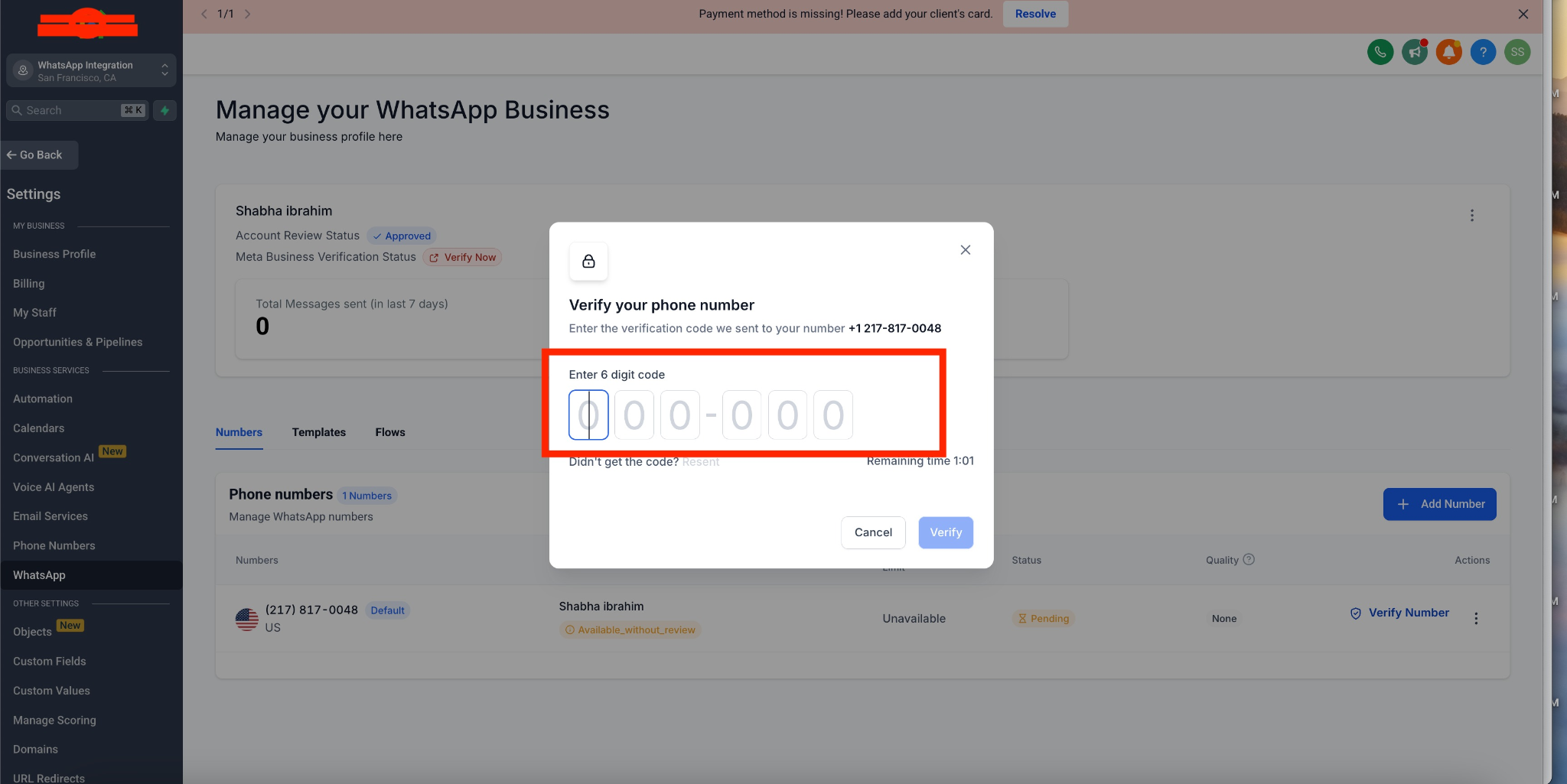
Step 12: Enter the 6-Digit OTP
- Enter the 6-digit OTP received via SMS or call to verify your number.
Step 13: Verification Complete!
- Your WhatsApp Business number is now successfully verified and ready to use.