AnyTrack Works with Facebook Ads
Set Up Facebook Ads in AnyTrack
Table of Contents
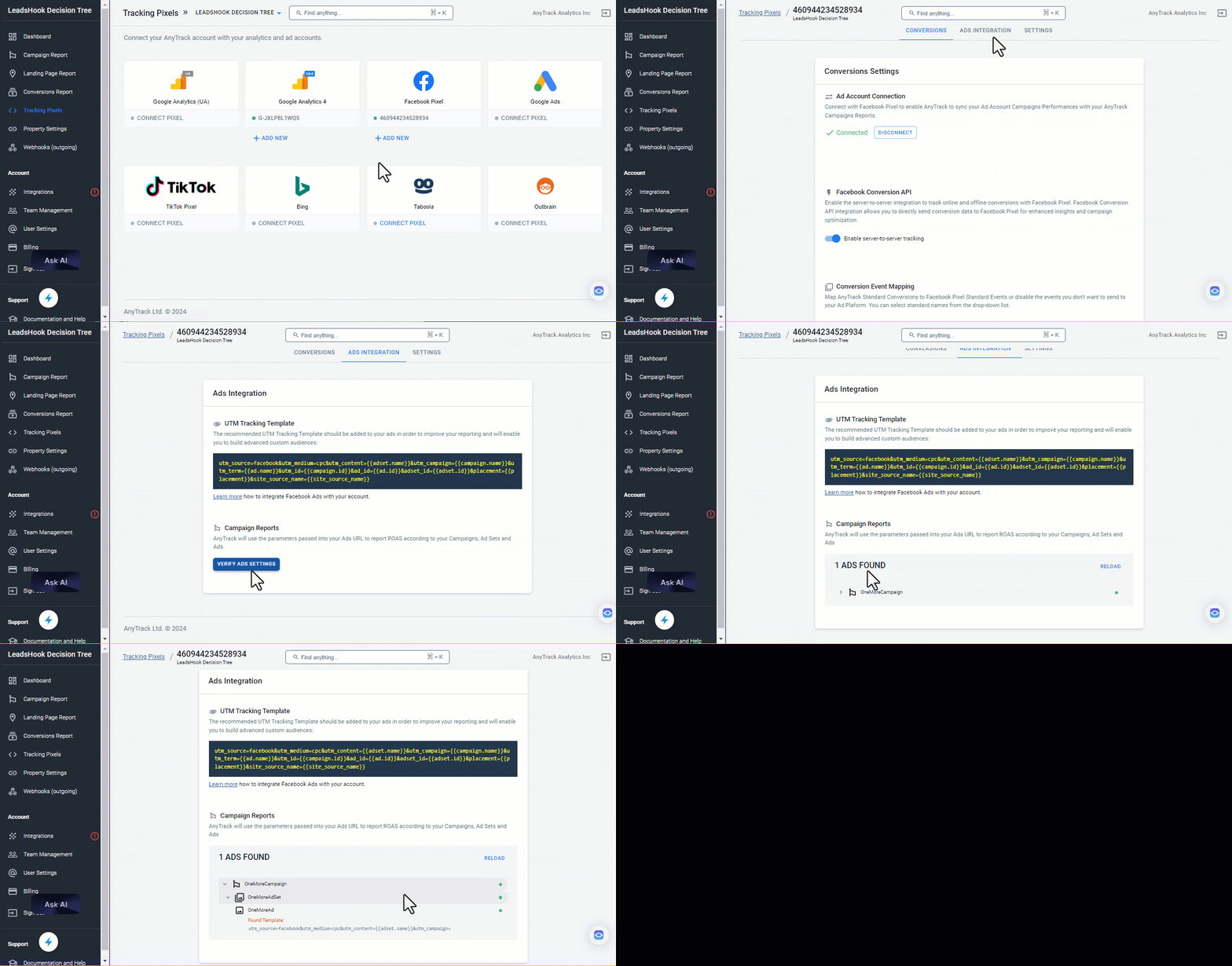
Step 1: Connect Your Facebook Ads Account
- Log in to your AnyTrack account, navigate to Tracking Pixels, and click on Connect Pixel
- Follow the prompts to connect your Facebook Ads account to AnyTrack
- Enable server-to-server tracking
- Save your changes

Step 2: Install the UTM Tracking Template
- Select the connected pixel in the Tracking Pixels section, click the Ads Integration tab, and copy the UTM Tracking Template
- Log in to your Meta Ads Manager and navigate to the campaign level
- Access the option to add URL parameters
- Paste the tracking template. It includes all necessary parameters, such as ad set name, ad ID, and campaign ID
- Proceed to verify your ads

Step 3: Connect Your Facebook Ads Account
- Navigate to the Tracking Pixels section and select the Facebook Pixel associated with your campaigns
- Click the Ads Integration tab
- Click the Verify Ads Settings button. If the template is correctly installed, you will see a green mark 🟢 next to your campaigns
Validation Checklist
- Check that you've connected the correct pixel ID.
- Check that you've connected your ad account.
- Check that you've enabled the Facebook Conversion API.
- If you've updated the Event Mapping, verify that the events are being recorded in the Event Manager.
- You've added the Facebook UTM Tracking template to all your ads.
- Check that you've selected the correct pixel and optimization event in your campaigns.
- Check the Facebook Event Manager to ensure you don't see any Browser Events.