Option 1: Delete a single opportunity
1. Open the Opportunities Section
From the left sidebar, click on Opportunities to access your list of deals. Make sure the Opportunities tab is selected at the top to view all current opportunities in your pipeline.
2. Select Opportunity
Locate the opportunity you wish to delete from the list of active opportunities. Click on the opportunity to open its details page.
3. Click Delete Icon
Click on the Delete icon on the bottom row to delete the opportunity. Confirm deletion operation to delete that opportunity.
Option 2: Bulk Delete Opportunities
- Go to Opportunities.
- Select multiple opportunities using the checkboxes.
3. Click Delete from the bulk actions bar.
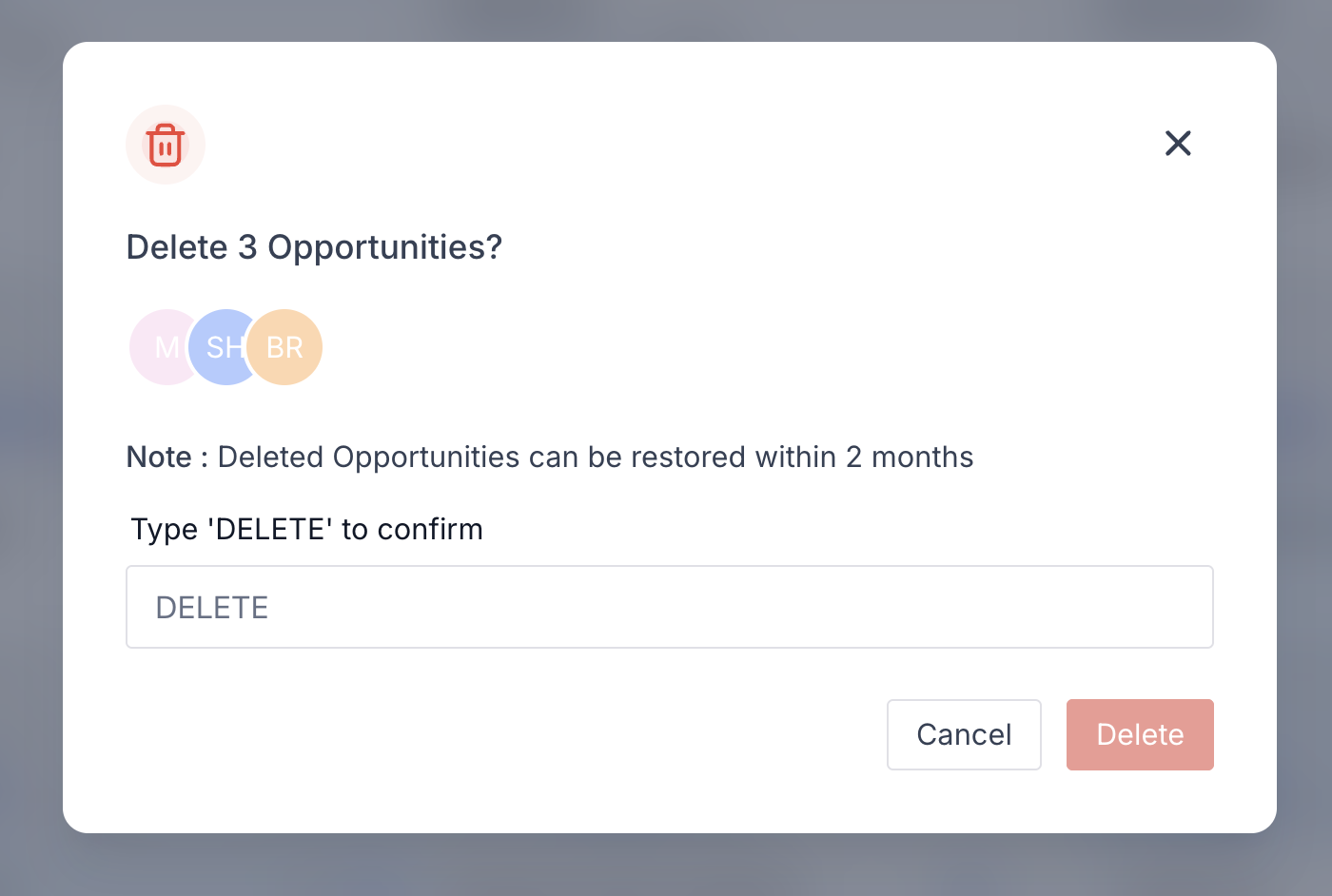
4. Type DELETE to confirm the action.
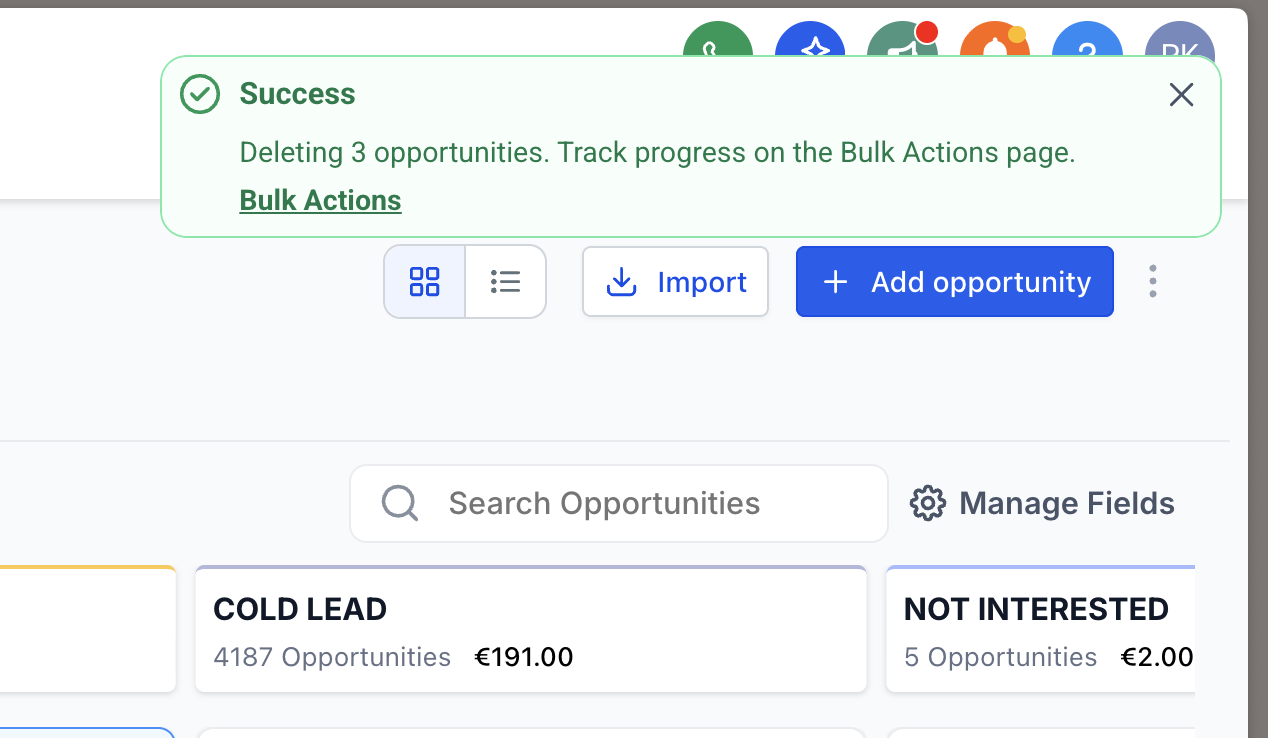
5. The deletion will be processed asynchronously.
You’ll see a success message with a link to track progress on the Bulk Actions page.
Option 1: Restore via Bulk Actions (Recommended)
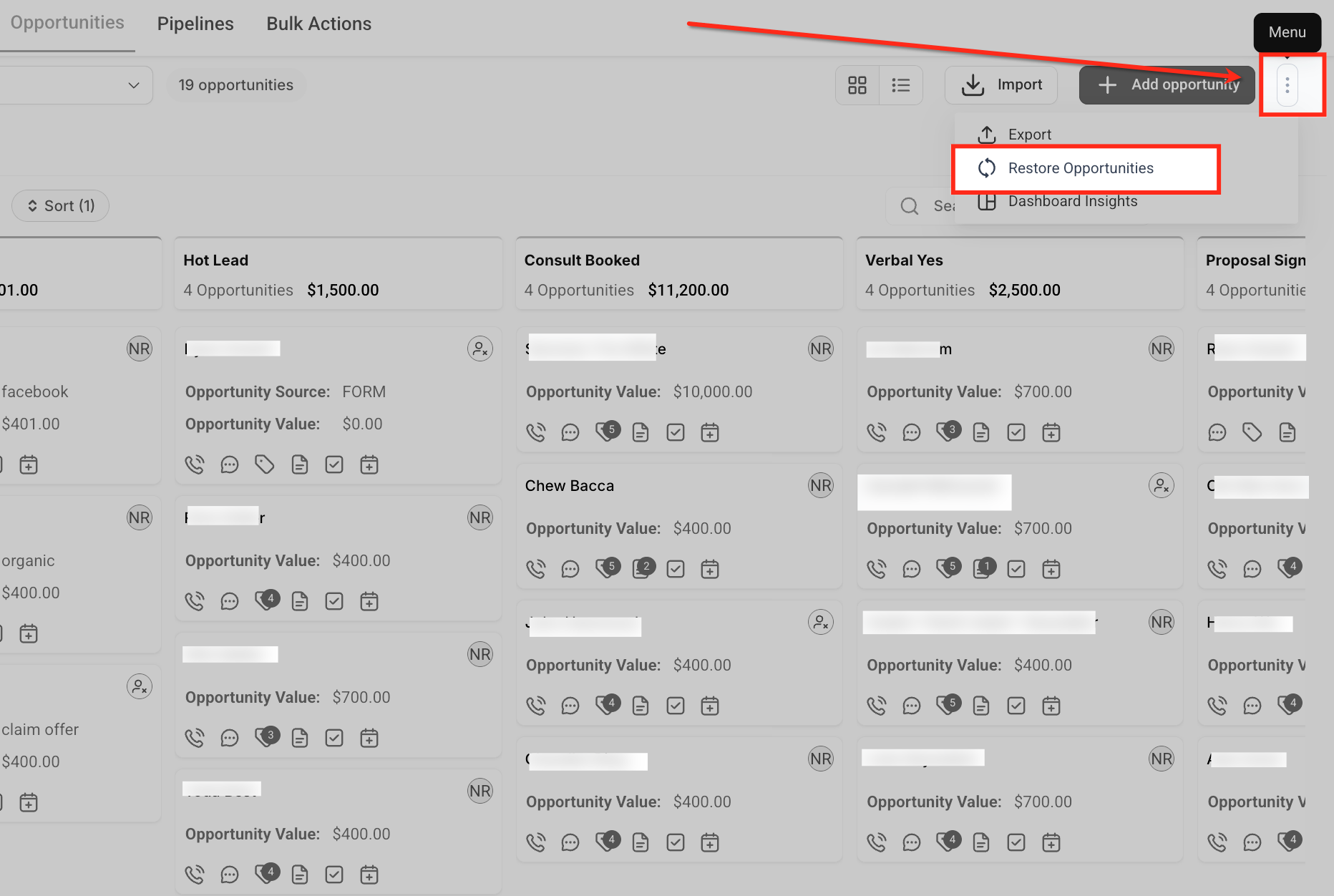
1. Go to Bulk Actions from the Opportunities section.
2. Locate the delete action you want to reverse.
3. Click the ellipsis (⋮) and select Restore.
4. Confirm the restore action.
⚠️ Opportunities linked to deleted contacts cannot be restored.
Option 2: Restore via Audit Logs (Alternate)
- Navigate to Settings
To begin the restoration process, go to the bottom-left of your sidebar and click on Settings. This is where you’ll access the Audit Logs to recover deleted opportunities.
2. Open Audit Logs
Set the Action filter to “Deleted” and the Module filter to “Opportunity” to narrow down the log view. This will show all opportunities deleted in the last 60 days, along with who deleted them and when.
3. Apply Opportunity Filters
Inside the Settings menu, scroll down and click on Audit Logs. This area shows a complete history of all user actions, including deletions, updates, and creations.
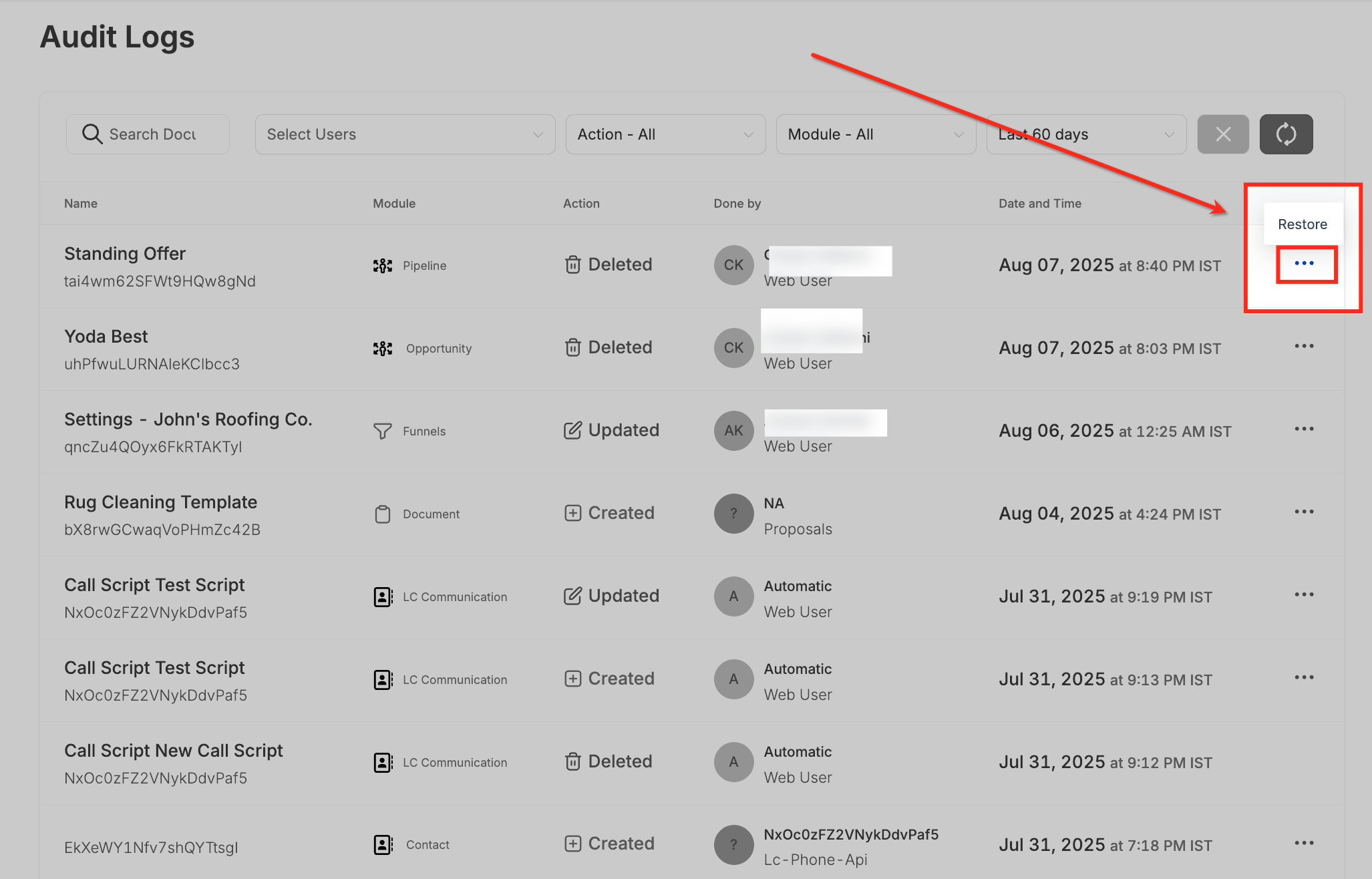
4. Restore the Opportunity
Find the deleted opportunity you want to recover and click the ellipsis (three dots) on the right. Select Restore from the dropdown to reinstate it to its original pipeline and stage.
Step-by-Step Guide: Deleting Pipelines
1. Access the Pipelines Tab
From the left-hand sidebar, go to Opportunities, then click the Pipelines tab at the top. This will display a list of all pipelines currently available in your account.
2. Delete the Pipeline
Click the trash icon next to the pipeline you want to remove. A confirmation prompt will appear—once confirmed, the pipeline and all associated stages and opportunities will be permanently deleted.
Step-by-Step Guide: Restoring Pipelines
1. Go to Settings for Recovery
To restore a deleted pipeline, begin by navigating to the Settings section from the left-hand sidebar. This will give you access to the Audit Logs, where deleted items can be recovered.
2. Open the Audit Logs
From the Settings panel, click on Audit Logs to view all recorded user activity. This log is where you’ll find entries for deleted pipelines and access the option to restore them.
3. Restore the Deleted Pipeline
Locate the deleted pipeline in the Audit Logs, then click the ellipsis (three dots) on the right side of the entry. Choose Restore to bring the pipeline, its stages, and all opportunities back into your account.